
See the weather on your trip
Nobody wants to drive into a storm. The app shows live rain on your map. It also shows the weather at each stop on your route. So you can pick a good day before you go.
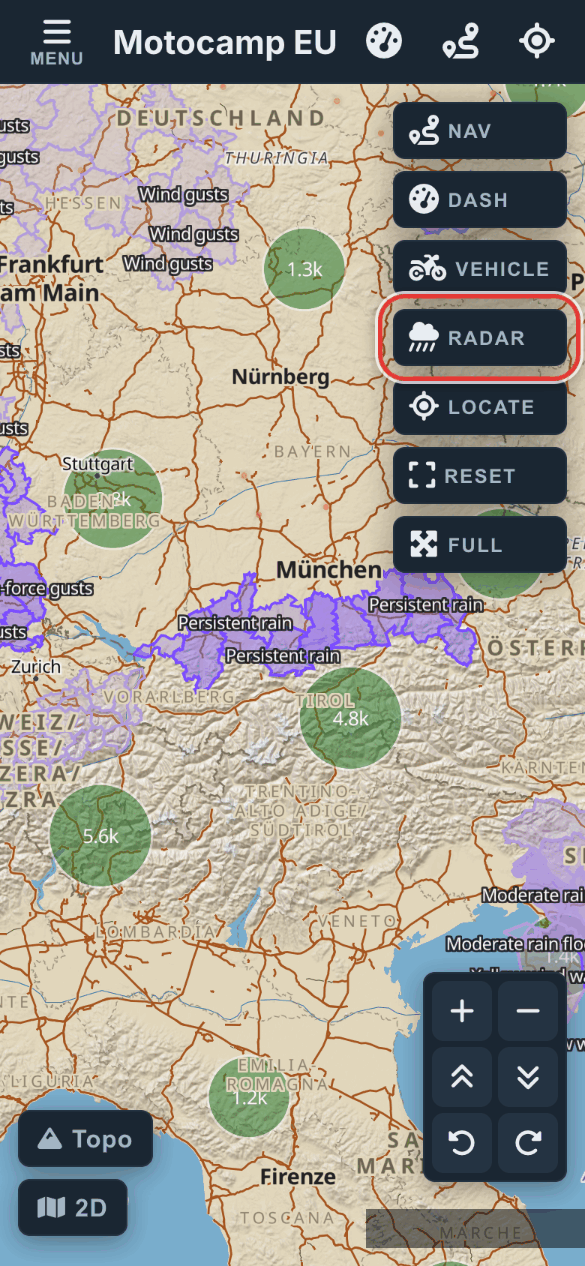
1Tap Radar on the map
The rain radar is on when you open the app. It shows where rain is falling right now. Find the Radar button at the top right of the map. It lights up while the radar is on. Tap it to hide the rain. Tap it again to bring it back. Zoom out to see the rain. It fades away when you zoom in close.
2Open Menu, then Weather
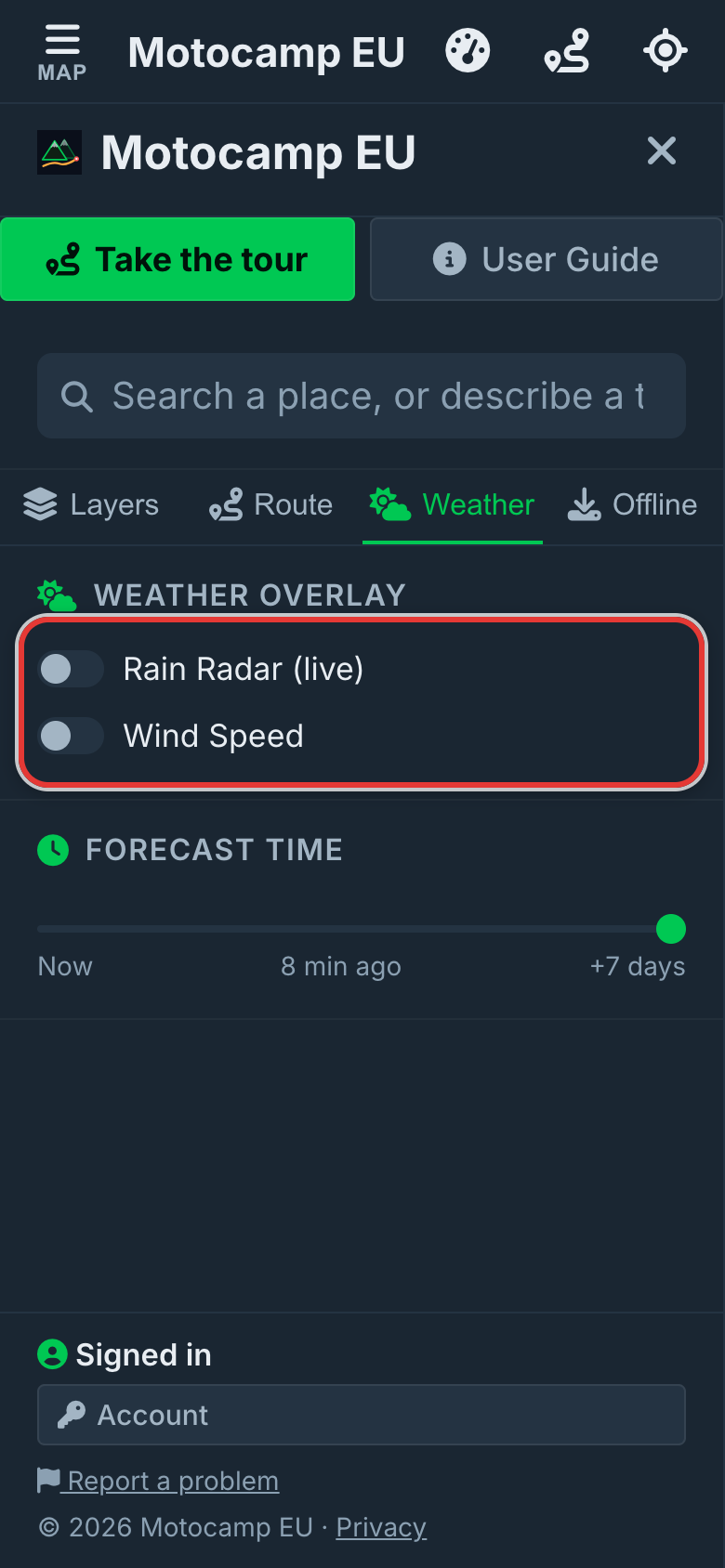
Tap Menu, then tap the Weather tab. Rain Radar (live) shows the rain. Wind Speed shows the wind. Only one can be on at a time. The Legend below shows what each colour means. For rain, it goes from Drizzle to Intense.
3Slide the Forecast Time bar
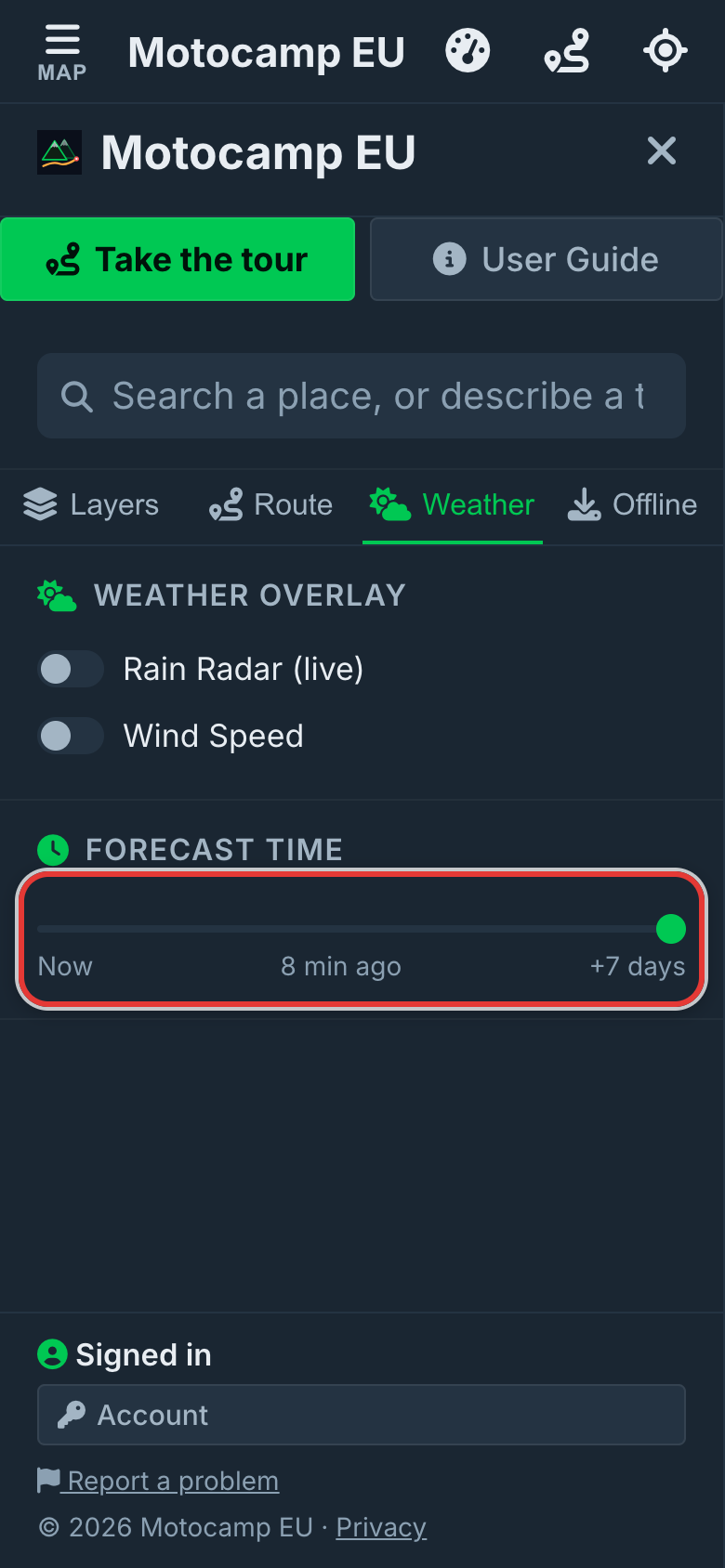
Look for Forecast Time. With Rain Radar (live) on, slide the bar to the left. It shows the rain from up to two hours ago. The label says how many minutes ago. Now you can see which way the rain is moving. With Wind Speed on, the bar goes from Now to +7 days. Slide it to see the wind for the week ahead.
4Plan a route, see each stop
Open the Route tab and plan your trip. Then look at the Route Summary. The Start, each Stop and the Destination get a card. Each card shows the date and the sky. It shows the high and low temperature in °C. It also shows the rain and the strongest wind. Bad weather at a stop shows in a Warnings list. That means heavy rain, strong wind, freezing or extreme heat.
5Read the Elevation Profile
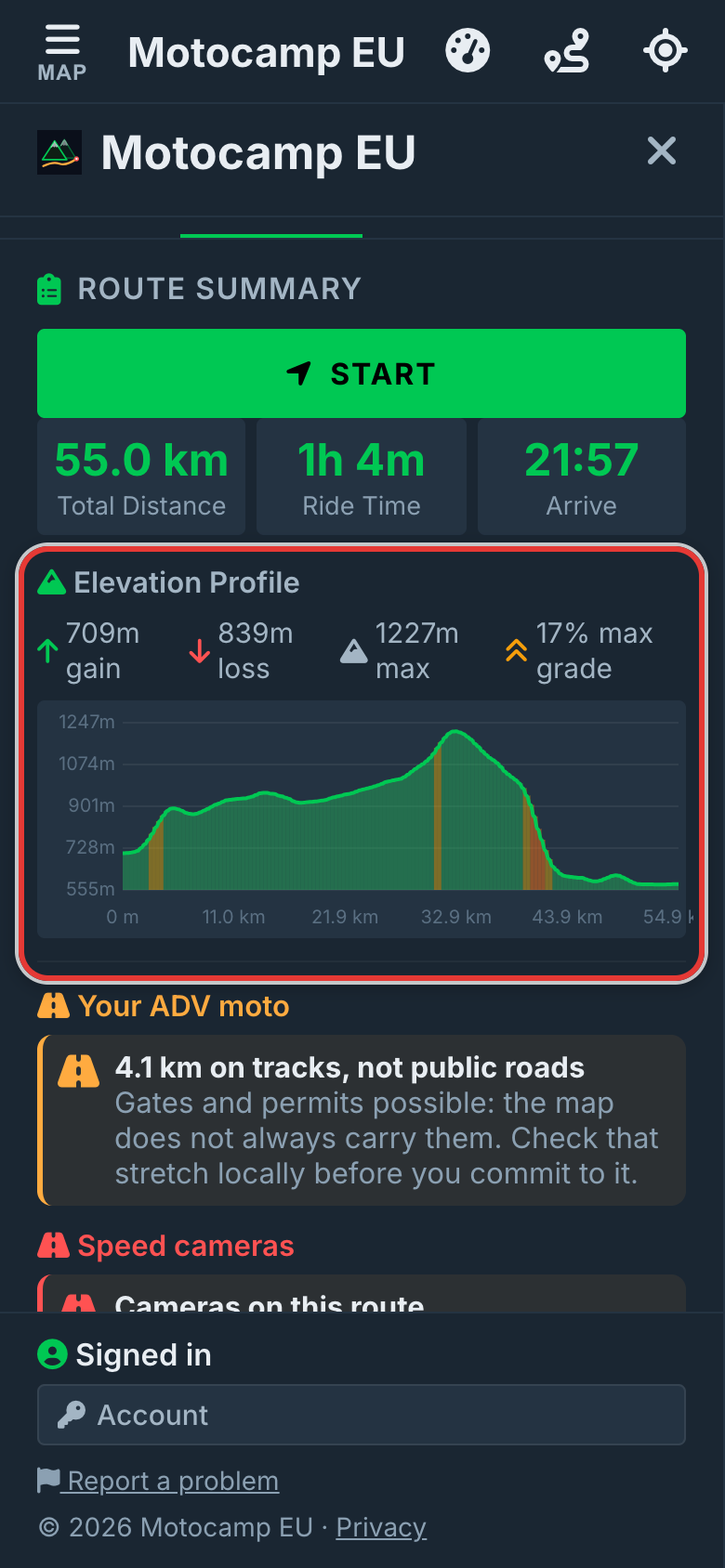
The Elevation Profile sits just under the totals at the top of the summary. It shows the hills and dips on your route. Gain is how many metres you climb. Loss is how far you go down. Max is the highest point. Max grade is the steepest part. The colours show how steep each part is. Green is gentle, under 6%. Then come yellow and orange. Red is very steep, 20% or more. Tap or point at the chart to see the height there.
6Take the route with you
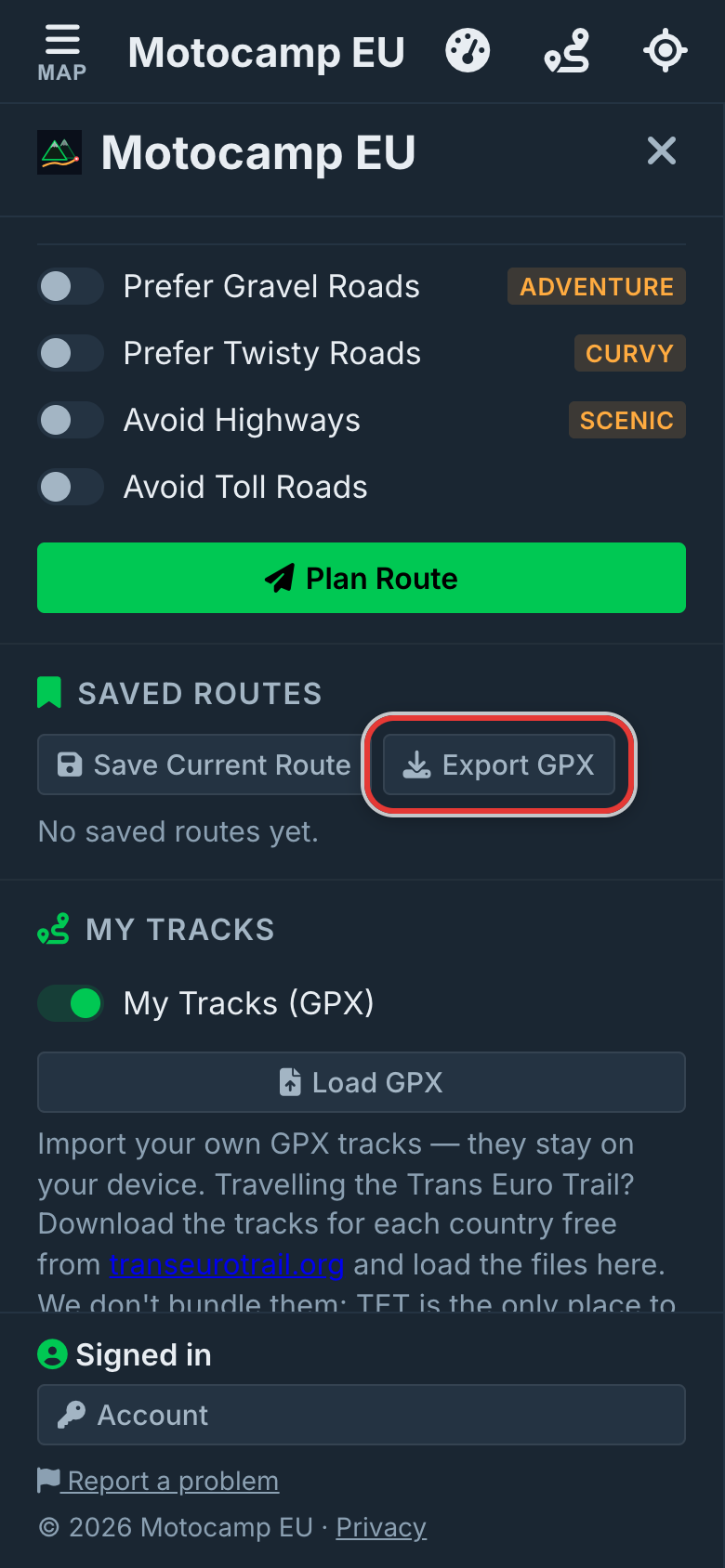
Scroll down to Saved Routes and tap Export GPX. A GPX is a small file that holds your exact route. You can open it on a GPS unit. Or open it in a phone app like OsmAnd or Kurviger. It keeps the exact roads you planned. On a phone, your share menu opens. On a computer, the file saves. Navigate with Google Maps, at the bottom of the tab, picks its own roads.
Good to know
The radar needs signal. Each stop card shows one day. The start shows today. The first stop shows tomorrow, and so on, up to seven days. So check the date on each card. After you plan a route, the app saves a week of weather along it. Then you can still see it with no signal.
Also in the app: maps that work with no signal, campsites and aires, and Plan with AI. It plans routes for seven kinds of vehicle, from an enduro bike to a motorhome.